In Alchemer, exactly as you normally would, with one difference.
1. Build your study as usual.
2. Leave **page 1 empty**: your questions start on page 2. Page 1 is where the gate goes.
You now have: a normal Alchemer study with an empty first page.
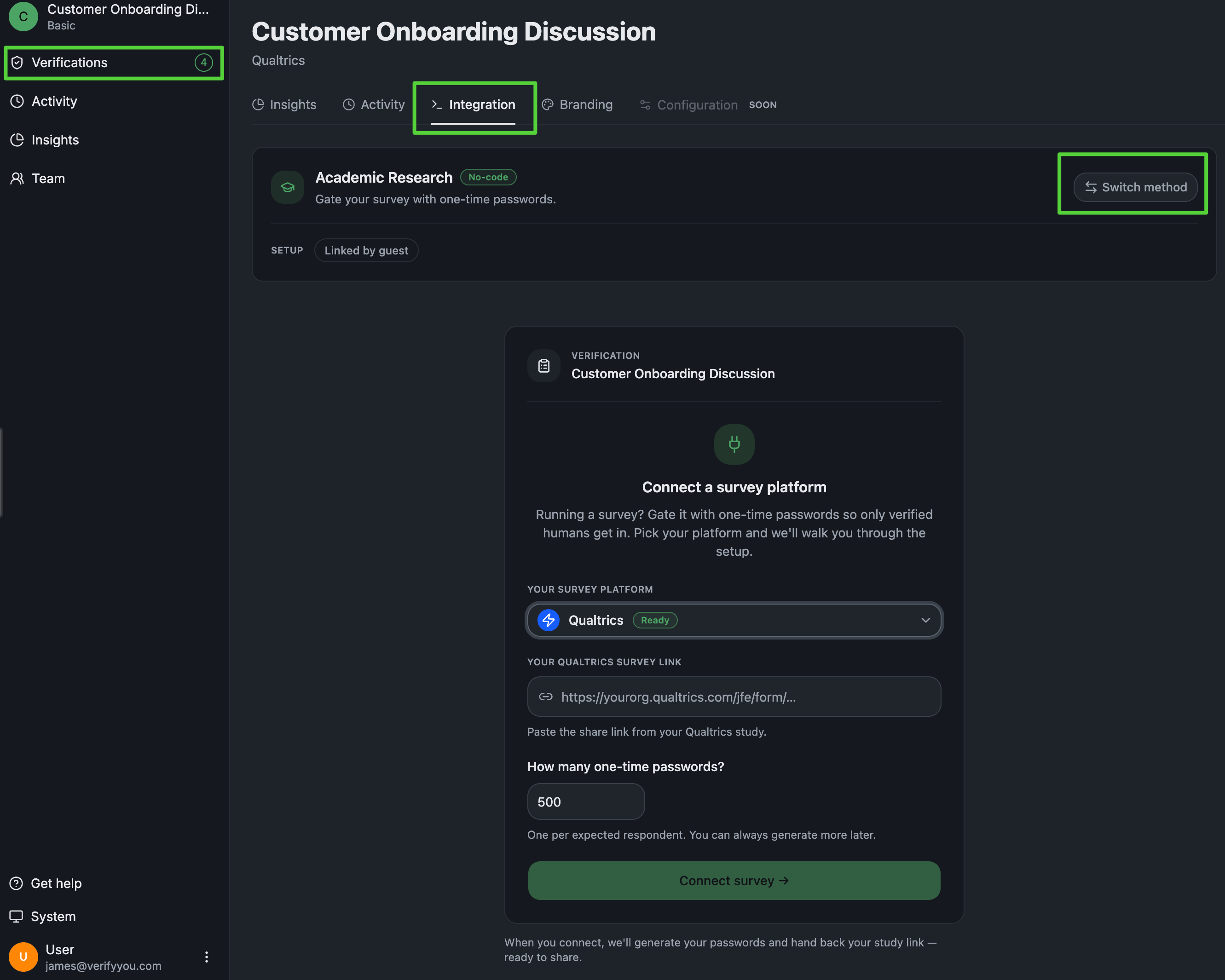
In your [VerifyYou dashboard](https://platform.verifyyou.com/dashboard/verifications), open a verification and go to the **Integration** tab.
1. Make sure the method is **One-time passwords**. If it is set to something else, click **Switch method** and choose it.
2. Under **Your survey platform**, pick **Alchemer**.
3. Paste your **Alchemer survey link**, the share link from your study.
4. Set **how many one-time passwords** you need, one per expected respondent. You can always generate more later.
5. Click **Connect survey**. We generate your passwords and hand back your study link.
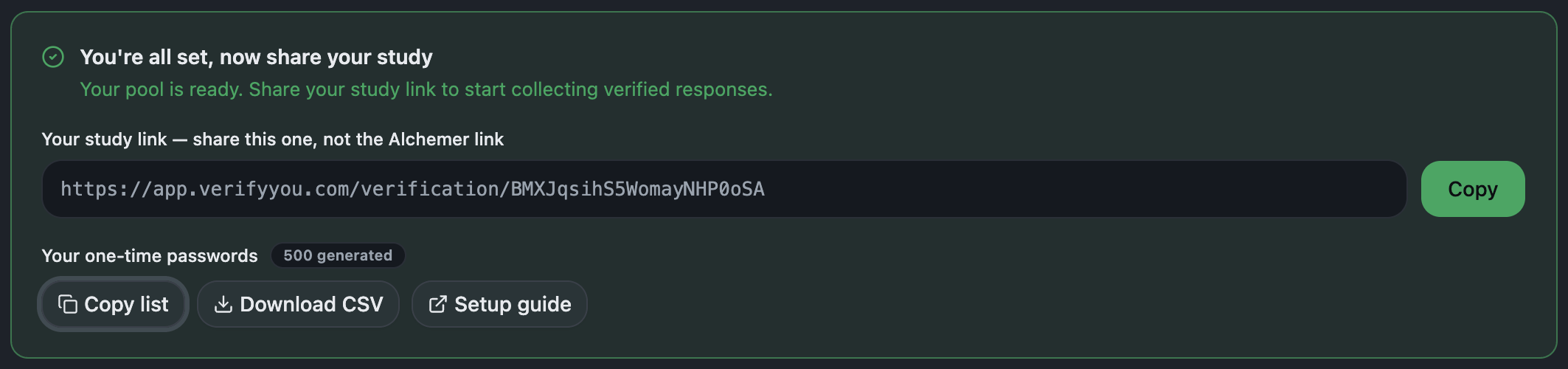
You now have: your study link (share this one, not your Alchemer link) and your one-time passwords. Click **Copy list** to copy them for the next step.
 On **page 1** of your study.
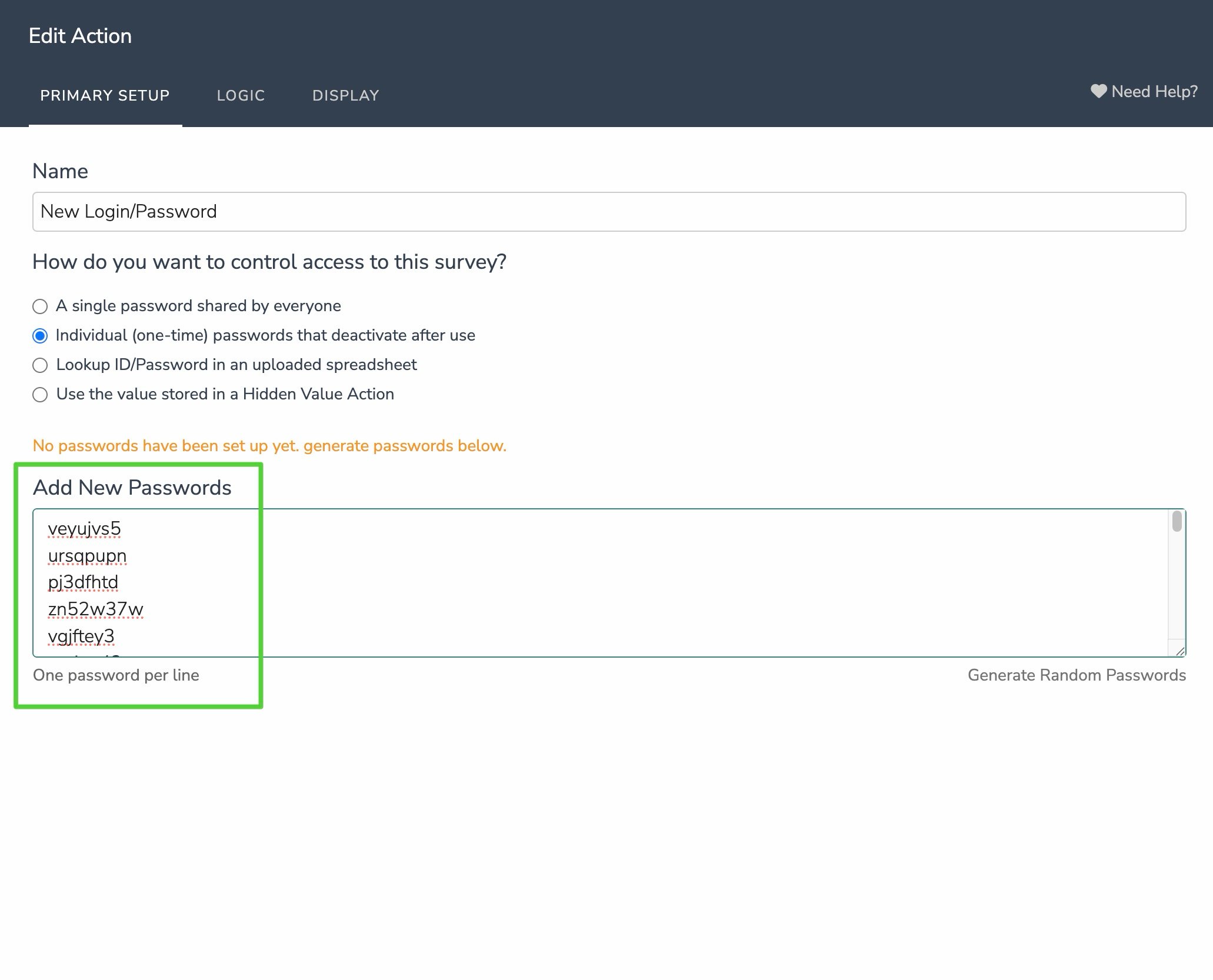
1. Click **Add New: Action** and pick **Login/Password**.
2. Choose **"Individual (one-time) passwords that deactivate after use."**
3. Paste your password list, one per line, and save. Keep this action alone on page 1.
Alchemer's own [Login/Password action](https://help.alchemer.com/help/login-password-action) enforces the gate before your first question shows.
On **page 1** of your study.
1. Click **Add New: Action** and pick **Login/Password**.
2. Choose **"Individual (one-time) passwords that deactivate after use."**
3. Paste your password list, one per line, and save. Keep this action alone on page 1.
Alchemer's own [Login/Password action](https://help.alchemer.com/help/login-password-action) enforces the gate before your first question shows.
You now have: a study that refuses anyone without a valid, unused password.
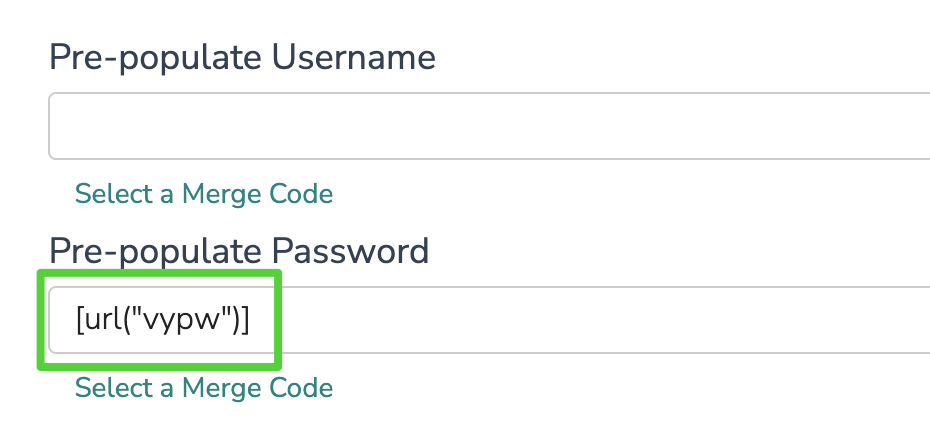
 In the same Login/Password action.
1. Open the **Display** tab.
2. Set **Pre-populate Password** to the merge code `[url("vypw")]` and click **Save Action**.
In the same Login/Password action.
1. Open the **Display** tab.
2. Set **Pre-populate Password** to the merge code `[url("vypw")]` and click **Save Action**.
You now have: a gate that opens itself for verified respondents. The password lands in the box on its own.
 The link you hand out is the **study link from VerifyYou** (the `app.verifyyou.com/verification/...` one, from **Copy** in the dashboard), never your Alchemer link. This is the whole point: the VerifyYou link sends every respondent through the face check first, then redirects the verified ones into your Alchemer study with their one-time password already attached. Anyone who opens the raw Alchemer link skips the check, so only ever share the VerifyYou link, in your panel, your sample provider, or your invite email.
You now have: a fielded study where everyone who reaches your questions came through the check. That's the whole setup.
## What happens next