> ## Documentation Index
> Fetch the complete documentation index at: https://docs.verifyyou.com/llms.txt
> Use this file to discover all available pages before exploring further.
# Branding your check
> How to make the check align with your brand.
The **Branding** tab allows you to make the check match your brand. Three controls.
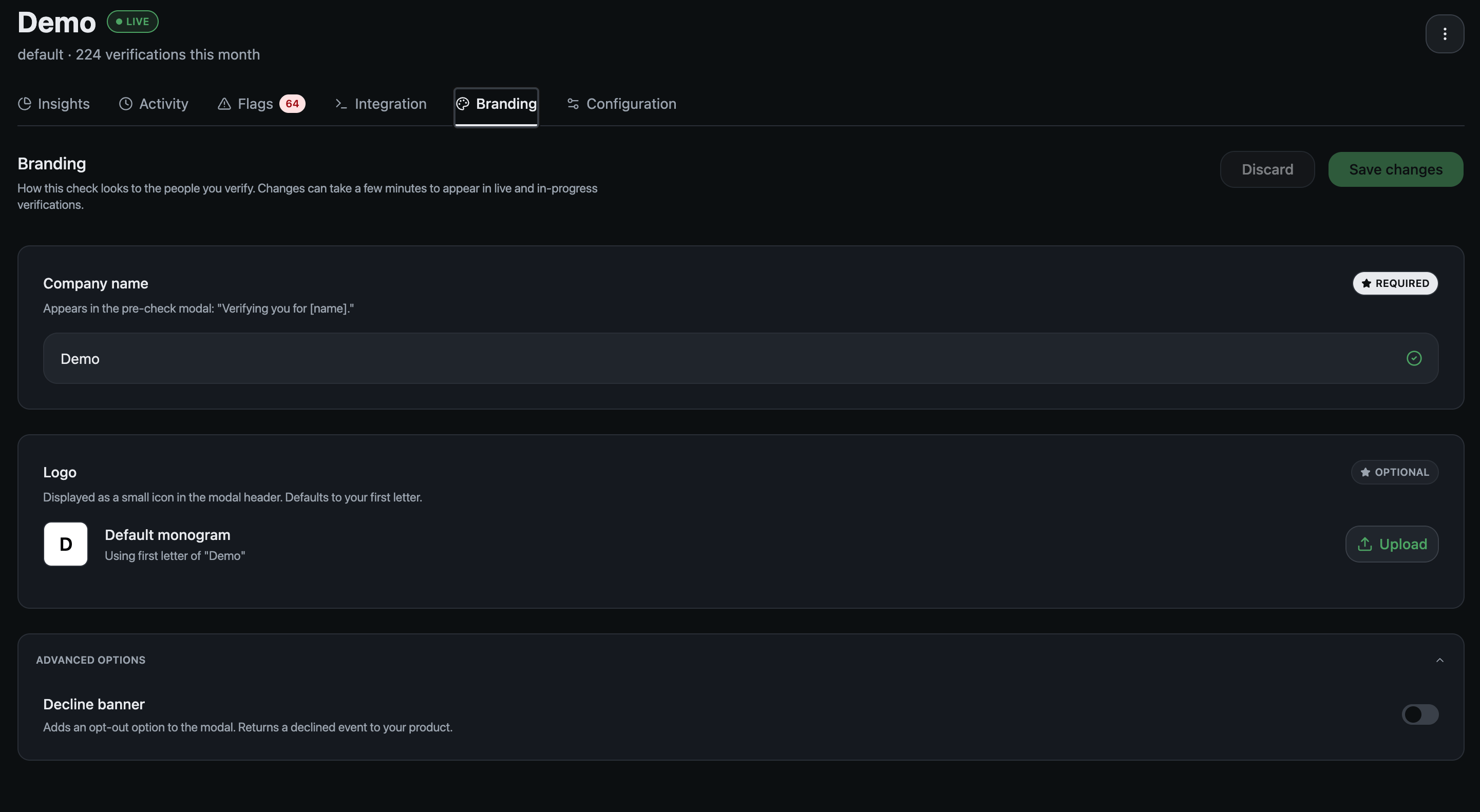 **Company name** is required. It fills the pre-check modal: "Verifying you for \[name]". Use the name your users already know. If your product name and your legal entity differ, use the product name.
**Logo** is optional. Without one, the check shows a monogram built from the first letter of your company name, so it never looks unfinished.
**Decline banner** sits under advanced options. Turning it on adds an opt-out to the modal and returns a declined event to your product, so somebody who would rather not verify has a way out and you find out they took it.
Changes save from this tab. They can take a few minutes to appear on live and in-progress verifications, so a check somebody is halfway through may still show the old name.
Where people land after the check is set on [Configuration](/docs/verifications/configuration), not here.
None of this changes what you receive. Whatever branding a check carries, you get back a verdict, never a face, a name or an image. See [Security and privacy](/docs/how-it-works/security-and-privacy).
**Next:** [Integration](/docs/verifications/integration)
**Company name** is required. It fills the pre-check modal: "Verifying you for \[name]". Use the name your users already know. If your product name and your legal entity differ, use the product name.
**Logo** is optional. Without one, the check shows a monogram built from the first letter of your company name, so it never looks unfinished.
**Decline banner** sits under advanced options. Turning it on adds an opt-out to the modal and returns a declined event to your product, so somebody who would rather not verify has a way out and you find out they took it.
Changes save from this tab. They can take a few minutes to appear on live and in-progress verifications, so a check somebody is halfway through may still show the old name.
Where people land after the check is set on [Configuration](/docs/verifications/configuration), not here.
None of this changes what you receive. Whatever branding a check carries, you get back a verdict, never a face, a name or an image. See [Security and privacy](/docs/how-it-works/security-and-privacy).
**Next:** [Integration](/docs/verifications/integration)