

Create your study
- Build your study as usual. Your questions stay exactly where they are.
- You add the gate in the Survey Flow, not on a page, so nothing about your instrument changes.
You now have: a normal Qualtrics study.
Connect your study in VerifyYou
- Make sure the method is One-time passwords. If it is set to something else, click Switch method and choose it.
- Under Your survey platform, pick Qualtrics.
- Paste your Qualtrics survey link.
- Set how many one-time passwords you need, one per expected respondent. You can always generate more later.
- Click Connect survey. We generate your passwords and hand back your study link.
You now have: your study link (share this one, not your Qualtrics link) and your one-time passwords. Click Copy list to copy them for the next step.
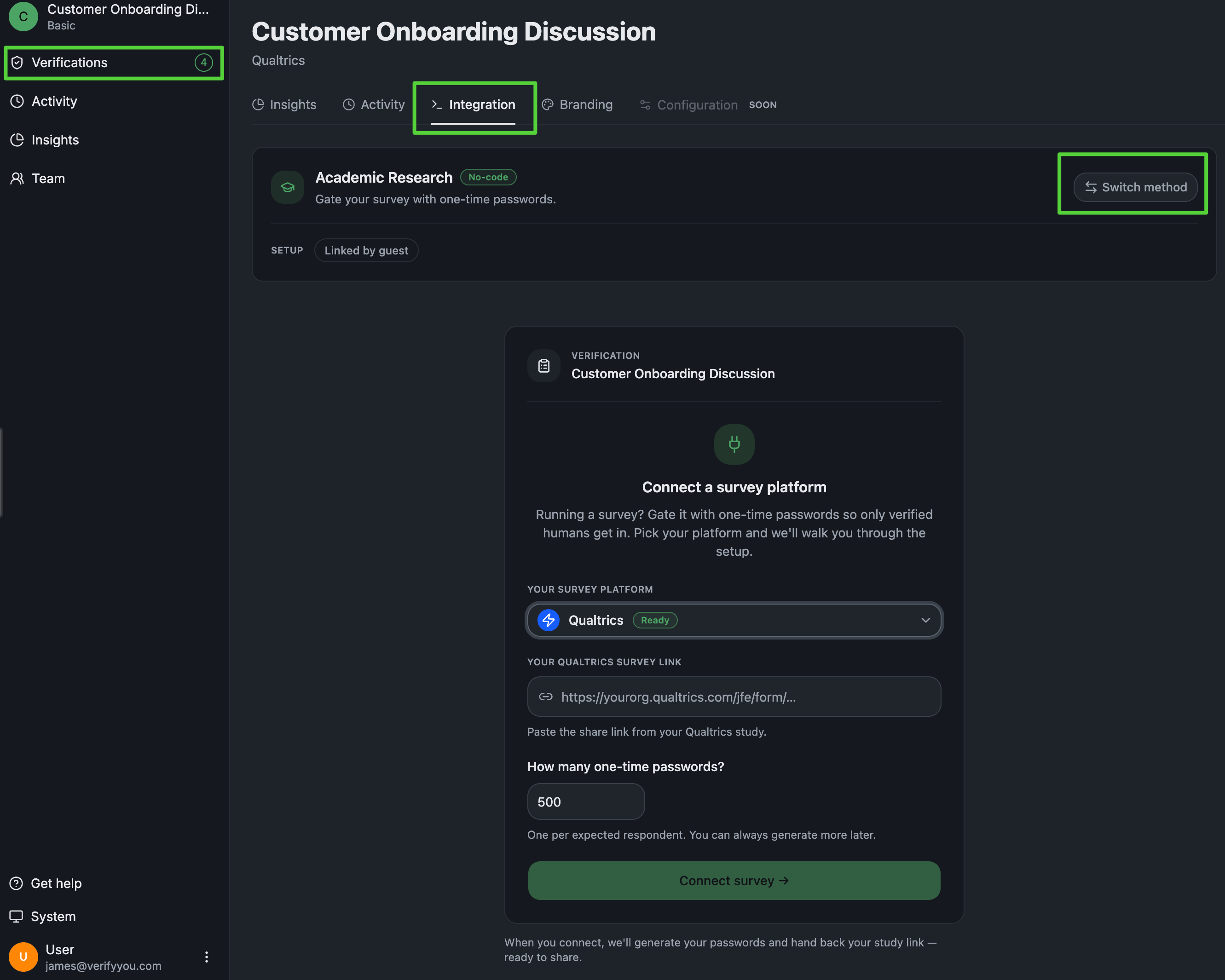
Your VerifyYou dashboard: the Integration tab on One-time passwords. Pick your platform, paste your survey link, and Connect.
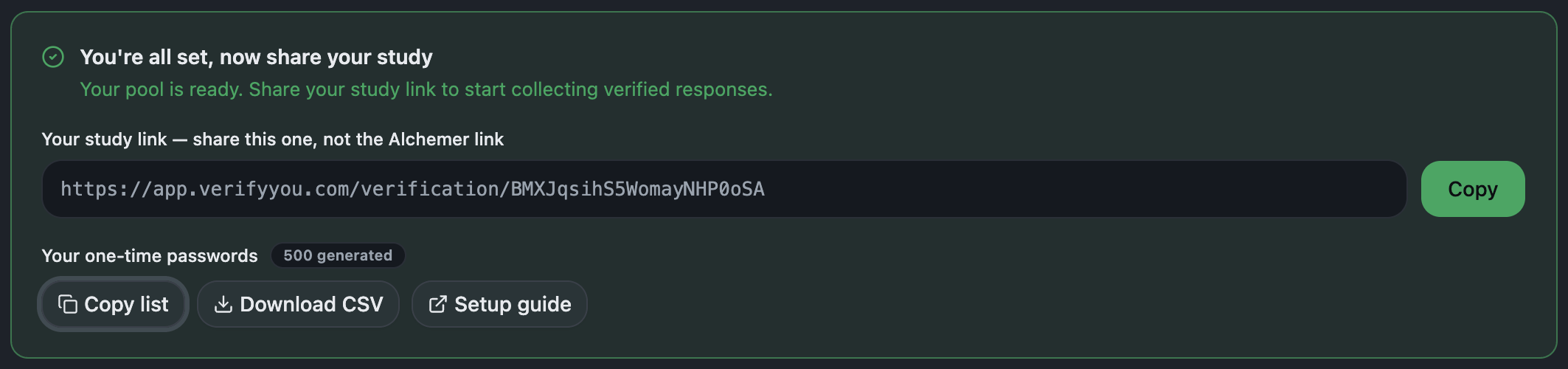
After you connect: the study link to share, and your one-time passwords to Copy list.
Create a contact list and paste your passwords
- Create a new contact list and choose Manual input.
- Paste the one-time passwords you copied into the External data reference column, one per row. That column is the passcode slot: paste them under any other field and the gate will not pick them up.
You now have: a contact list where each code sits in External data reference and can authenticate exactly once.
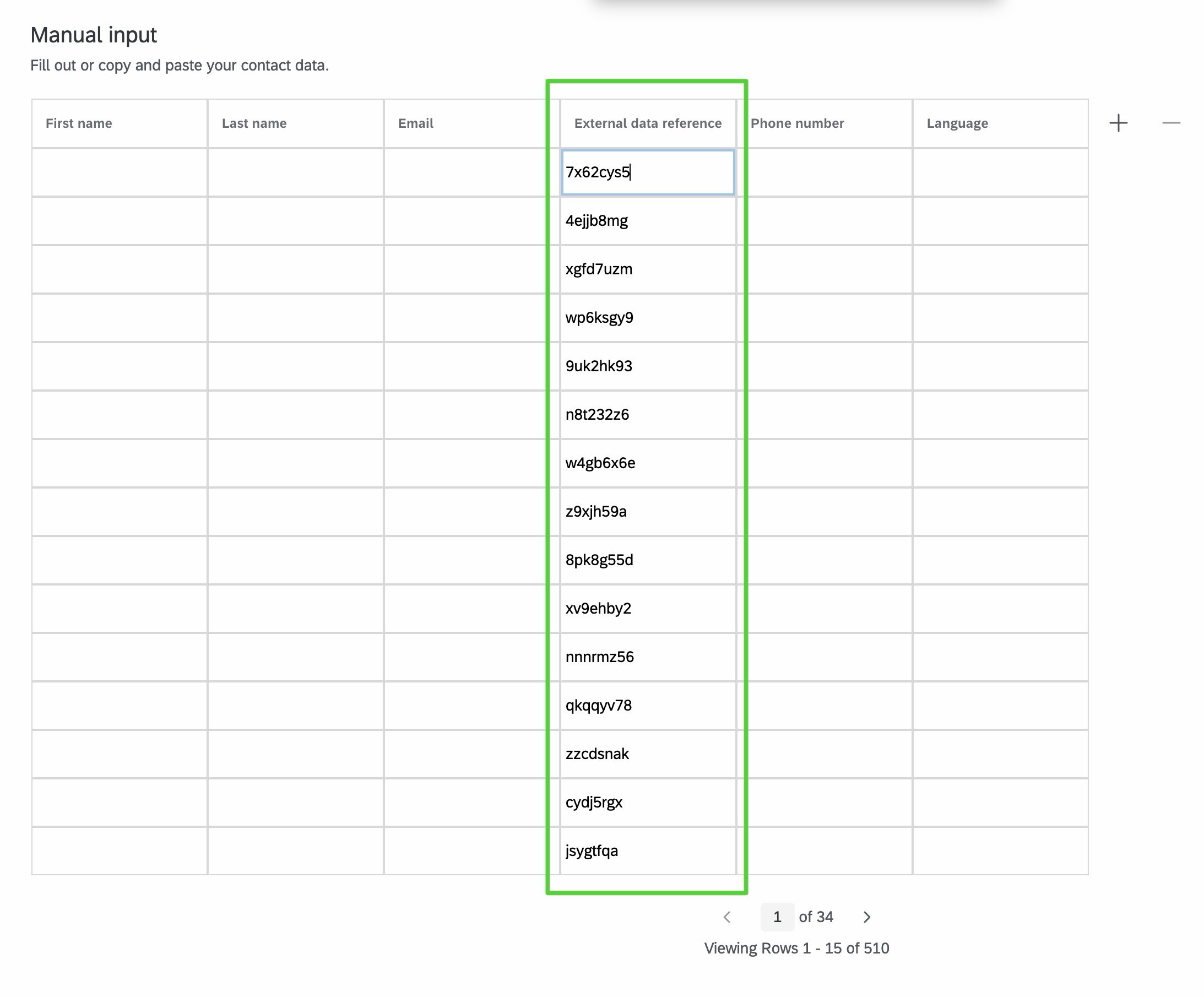
Qualtrics's own UI: your one-time passwords pasted into the External data reference column of a contact list.
Add the gate in Survey Flow
- Add a Set Embedded Data element at the very top, with the single field
vypwand no value. Qualtrics fills it from each respondent’s link, their documented query-string mechanism, so it should read “Value will be set from Panel or URL.” - Add an Authenticator beneath it, which shows as Branch on Successful Authentication. Set Authentication Type to Contact, authenticate using the contact list you just created, set the authentication field to External Data Reference, tick Pre-fill, and enter
vypw. Leave “Allow authenticating respondents to retake authenticated section” unchecked, which is the default: that is what makes each code one-time. - Put your survey blocks inside the authentication branch.
- Add a second Branch ending in its own End of Survey, for anyone who does not authenticate. Qualtrics records a failed authentication as a complete by default, so this branch is what keeps failed and duplicate visitors out of your data.
You now have: a gate that opens itself for verified respondents and routes everyone else to a screen-out.
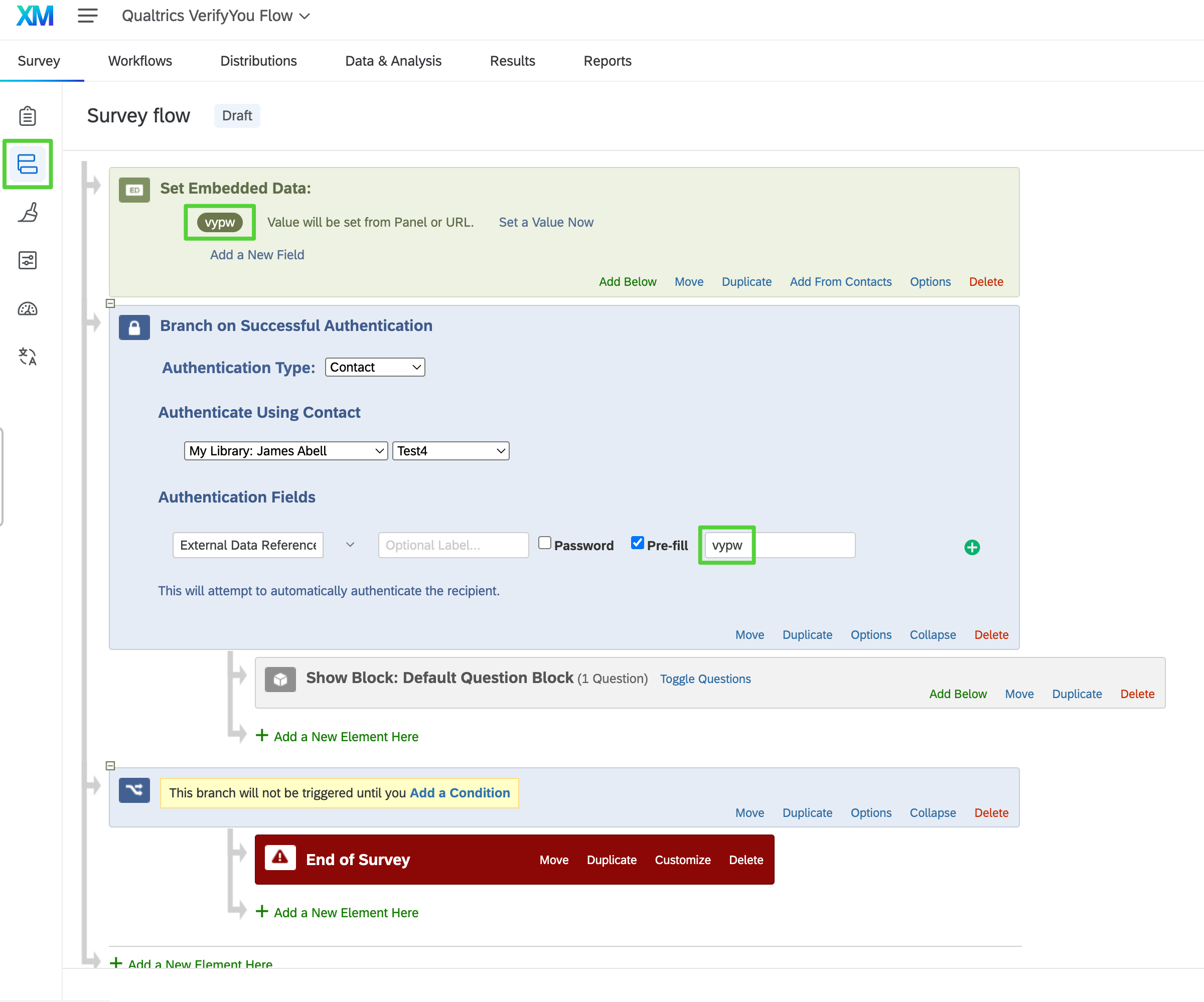
Qualtrics's own UI: Survey Flow with Set Embedded Data (vypw) at the top and a Branch on Successful Authentication below it.
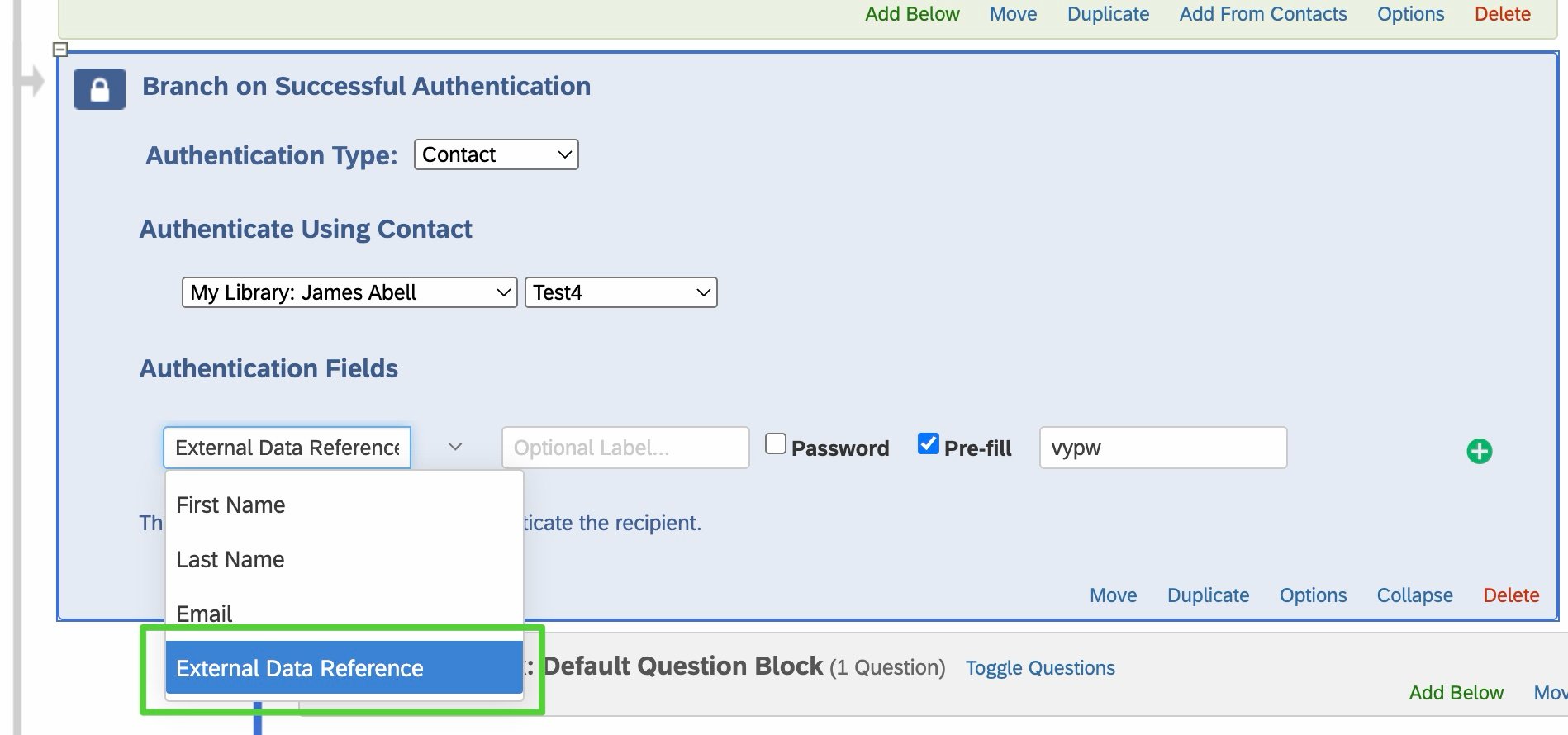
Qualtrics's own UI: the authentication field set to External Data Reference, with Pre-fill ticked and pointed at vypw.
Share your VerifyYou link, not your Qualtrics link
app.verifyyou.com/verification/... one, from Copy in the dashboard), never your Qualtrics link. This is the whole point: the VerifyYou link sends every respondent through the face check first, then redirects the verified ones into your Qualtrics study with their one-time password already attached. Anyone who opens the raw Qualtrics link skips the check, so only ever share the VerifyYou link, in your panel, your sample provider, or your invite email.You now have: a fielded study where everyone who reaches your questions came through the check. That’s the whole setup.